
Appearance
Administration
The Administration menu item contains subitems for Jobs, Feeds, API Keys, and Team.
Jobs
The Jobs page shows you an overview of any jobs Relewise is currently running. Jobs are commonly used to integrate entities from a feed or similar scheduled tasks.
The Jobs page does not allow you to create jobs, only view data on the currently active ones. For setting up or editing a job, please reach out to us via Slack.
Feeds
The Feeds page shows an overview of the feeds currently provided to Relewise. We use feeds to pull data via a job (see above).
The Feeds page allows you to create feeds, and checks that your feed conforms to the expected RSS 2.0/Google shopping format. The page also allows you to view data on the currently active feeds. For setting up or editing a feed that does not conform to our standard format, please reach out to us via Slack.
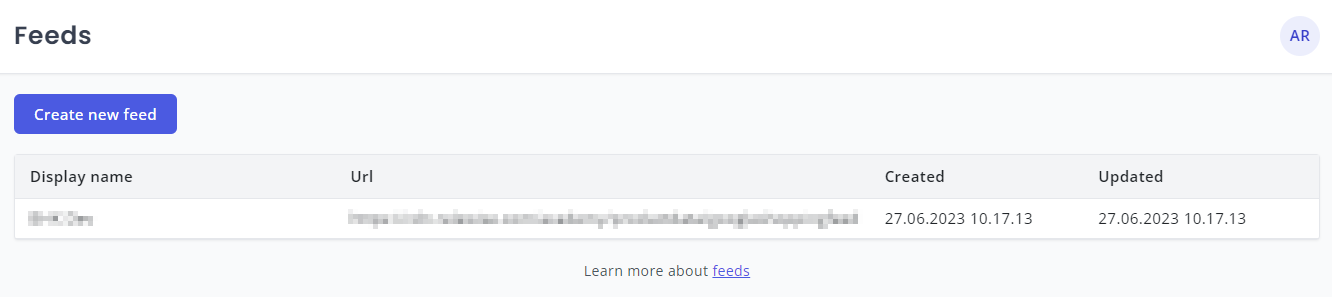
By default, Relewise supports the RSS 2.0/Google Shopping feeds, but Relewise can conform to any format in theory. Integrating a custom feed requires mapping the data to the Relewise data models, which requires billed work to accomplish. If you are interested in integrating your custom feed, please contact us for an estimate of time and cost to do so.
API Keys
On the API Keys pages, you will find the Dataset ID, Server URL, and any API Keys attached to the dataset. This is important to get started implementing Relewise on a solution.
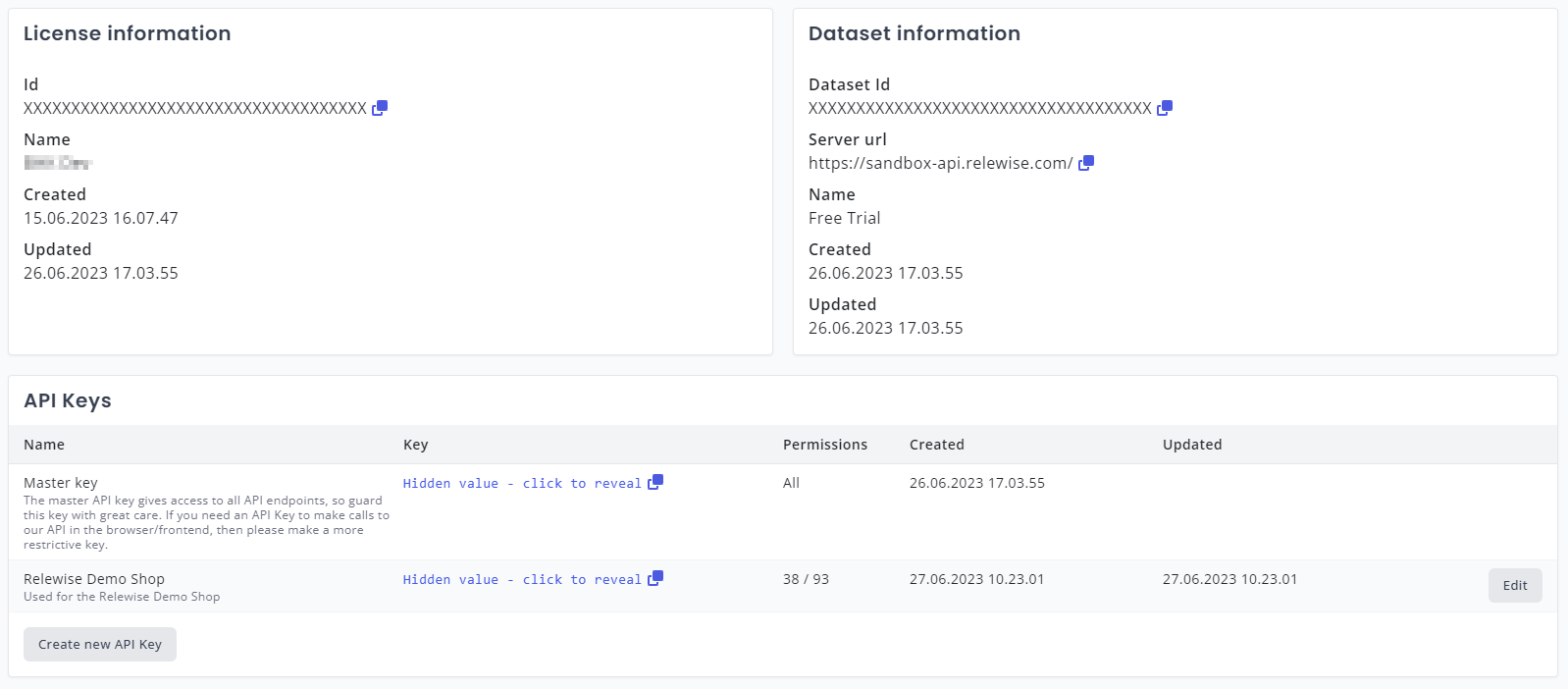
To set up a new developer, the Dataset ID, Server URL, and API Key under API information are the only items needed. If the developer is working in a particular SDK, however, the page also includes links directly to these as well as a link to this documentation to get them started quickly and easily.

Team
The Team page under Administration lets you view and manage who can access the active Dataset. The list includes members who have access directly on the Dataset, or through a Dataset Group or License.
Access Hierarchy
Access can be granted at three levels:
- License (highest) Top-level agreement for all Dataset Groups and Datasets.
- Dataset Group An optional grouping of Datasets within the License.
- Dataset (lowest)
Access granted at a higher level automatically applies to the levels beneath it. For example, License access applies to all Dataset Groups and Datasets under that License.
Members with the Administrator role or the Manage Members permission can invite and edit members. They can only manage access at their own level or lower, and they cannot assign a role higher than their own.
No Team Managers Available
If no one on the License, Dataset Group, or Dataset can manage members, the Team page displays a warning and asks you to Contact Support.
Roles and Permissions
Permissions are assigned to members individually. Administrators have all permissions by default, while Members only get the permissions you select.
| Permission | Description |
|---|---|
| Manage Members | Invite, edit, remove, and resend invitations for members at the same or lower access level. |
Team List
The Team list includes:
- Member name and email address
- Role assigned at the current access level
- Granted At to show whether access is granted on the License, Dataset Group, or Dataset
- Status (for example, Invited or Active)
- Last Login (shows Never for invited users)
Use Search users to filter the list.
Invite Members
Select Invite Member to open the invitation form. You can assign access at the License, Dataset Group, or Dataset level and pick a role and permissions for each selected level. When you send the invitation, the member receives an email with a link to join My Relewise.
If you do not see Invite Member, you do not have the Manage Members permission.
Edit or Remove Members
Select Edit to open Manage Member for a user. You can change their access level, role, or permissions.
To remove a member, clear all access levels and confirm the prompt. Removing all access removes the member from the team for the active Dataset.
If you do not see Edit, you do not have the Manage Members permission.
Resend Invitations
If a member has not logged in yet, their status stays Invited. Select Resend Invitation to send the invitation email again.